


Imagine turning a simple sentence into a professional 8-second video clip with realistic motion, native sound effects, and perfect lighting all in under a minute. No camera, no crew, no expensive software.
That’s exactly what Google Vids + Veo 3.1 delivers in 2026.
Small businesses in Delhi struggle to produce scroll-stopping Reels. Edtech founders need quick explainer videos. Marketing teams burn hours on basic content. The old way hiring videographers or learning complex editors costs time and money most Indian startups simply don’t have.
Google Vids changes everything. Powered by Google’s latest video model Veo 3.1, it lets any Google account holder generate high-quality AI videos for free (10 clips per month). Then edit, add voiceovers, music, and collaborate exactly like Google Docs.
This complete beginner guide walks you through everything from signing in to exporting polished videos ready for YouTube Shorts, Instagram Reels, or LinkedIn. Whether you run a D2C brand in Mumbai or teach online courses from Bangalore, you’ll finish this article ready to create like a pro.
What is Google Vids?
Google Vids is a free, AI-powered video creation and editing tool from Google. It works directly in your web browser and is available to anyone with a personal Google account—no special subscription needed for basic use.
It acts like a smart video maker that combines a simple timeline editor with powerful AI features. You can generate short video clips using Veo 3.1, create scripts and voiceovers with Gemini AI, record your screen, upload your own clips or images, add music, auto-create captions, and collaborate with others in real time—just like you do in Google Docs or Slides.
In simple terms, it’s “Google Docs for videos.” You don’t need to download any software or learn complicated editing programs. Just open it in your browser and turn your ideas into professional-looking videos in just a few minutes.
What is Veo 3.1 and How It Works
Veo 3.1 is Google’s latest and most advanced AI model for creating videos. Developed by Google DeepMind, it was first released in late 2025 and improved in 2026.
With just a few words (a text prompt), Veo 3.1 can create short, realistic video clips — up to 8 seconds long in 720p quality (or even higher in paid plans). These videos look natural, follow real-world physics, and even include realistic sounds.
Key Features of Veo 3.1
- Text-to-Video: You type a description of the scene, and Veo 3.1 generates the video for you.
- Image-to-Video (Animate an Image): You upload a photo, and the AI brings it to life with movement.
- Ingredients to Video: You can upload up to 3 reference images (like your product, a person, or a background). This helps the AI keep the same character, object, or style consistent across multiple clips.
- Native Audio: The videos come with realistic sound effects, background noise, spoken dialogue, and even light music that matches the action.
- Aspect Ratios: You can create videos in landscape (16:9) for YouTube or portrait (9:16) for Instagram Reels and YouTube Shorts.
- Creative Controls: You can guide the camera (like slow zoom or tracking shot), lighting, mood, and overall style.
Veo 3.1 is especially good at understanding detailed instructions. For example, it can follow cinematic terms like “slow push-in shot at golden hour” or “dynamic tracking shot with dramatic shadows.”
It also solves a big problem of older AI tools by keeping people and objects looking the same when you use reference images.
In simple words: Veo 3.1 turns your text descriptions and photos into realistic, moving videos complete with sound.
How Google Vids Uses Veo 3.1
Google Vids doesn’t just let you use Veo 3.1 — it makes the powerful AI model super easy to use by adding a simple and friendly video editor around it.
As of April 2026, anyone with a free Google account can create 10 high-quality Veo 3.1 video clips every month at no cost.
If you upgrade to Google AI Pro or Ultra (or a paid Workspace plan), you get many more generations (up to 1,000 clips per month), plus extra features like custom music and AI avatars.
Here’s how it works:
- You create a short video clip using Veo 3.1 directly inside Google Vids.
- Once the clip is ready, you simply drag and drop it onto the timeline.
From the timeline, you can easily:
- Trim or cut the clips
- Add multiple clips together to make a longer video
- Record or add AI voiceovers (with an easy teleprompter)
- Insert stock footage, animations, or smooth transitions
- Collaborate with your team members in real time (just like Google Docs)
- Export the final video directly to YouTube or download it as an MP4 file
In simple words: Google Vids combines the powerful Veo 3.1 AI with a clean, easy-to-use editor. What used to take days of shooting and editing can now be done in just a few minutes.
This shift reflects a broader trend where AI agents are transforming enterprise software into intelligent systems that can think, create, and automate workflows without human intervention.
Step-by-Step Guide: How to Create AI Videos with Google Vids Using Veo 3.1
Follow these easy steps to create your first AI video even if you have never made a video before.
Step 1: Sign In and Open Google Vids
- Open your web browser and go to docs.google.com/videos Or simply search for “Google Vids” inside your Google Drive.
- Sign in with your regular Google account (Gmail).
Important Note: You don’t need any paid subscription. The basic version with 10 free video generations per month works with a normal Google account.
Pro Tip for Indian Users: Use a strong and stable internet connection (Jio or Airtel 5G is excellent) and open Google Vids in the Chrome browser for the best speed and performance.
Step 2: Start a New Project
- Click on New video to create a fresh project.
- Or open any previous project you have already started.
You will see a clean and simple timeline, very similar to Google Slides.
Step 3: Open the Veo 3.1 Video Generator
- Look at the start menu or the right-side panel and select Veo 3.1.
- You will see three main options:
- Create from Scratch (using a text prompt)
- Animate an Image
- Ingredients to Video (using up to 3 reference images)
Choose the option that best matches what you want to create.
Step 4: Generate Video from Text Prompt (Create from Scratch)
This is the most popular way to start.
- Choose your video format:
- Landscape (16:9) – good for YouTube
- Portrait (9:16) – perfect for Instagram Reels and YouTube Shorts
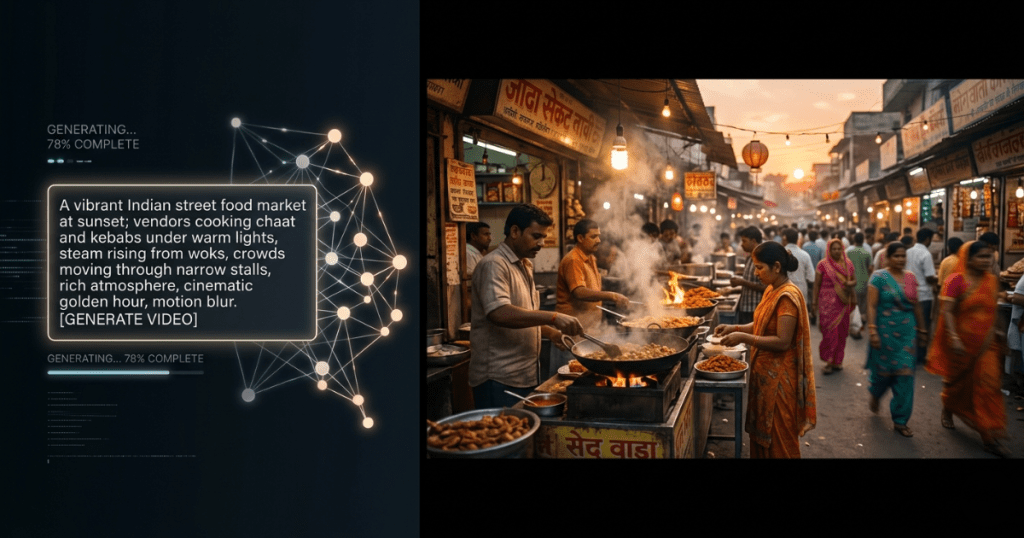
- Write a clear and detailed prompt.Example Prompt (for a Delhi street food Reel): “Wide cinematic shot of a busy Delhi street food stall at dusk. Golden hour lighting, steam rising from hot chole bhature. The vendor smiles at the camera while flipping fresh puris. Dynamic tracking shot, vibrant colors, energetic music with dhol beats, 9:16 vertical format.”
- Click Generate.
- Wait a few seconds. You will get an 8-second video clip with realistic sound (you can hear the sizzle of food and street noise).
- Preview the clip. If you like it, hover over it and click Insert to add it to your timeline.
You can keep editing the prompt and regenerate as many times as you want. All previous versions stay saved in the same session for easy comparison.
Step 5: Animate a Single Image
This option is great for product photos or portraits.
- Upload a clear, high-quality photo (JPG or PNG).
- Write a motion prompt.Example Prompt: “The smartphone floats gently in mid-air while colorful app icons swirl around it. Smooth 360-degree rotation, soft studio lighting, modern tech look.”
- Click Create.
Google Vids will automatically adjust the image to fit your chosen format (16:9 or 9:16) by adding black bars if needed.
Step 6: Use Ingredients to Video (For Consistent Branding)
This is one of the best features of Veo 3.1 — it helps keep the same person, product, or style in every clip.
- Click Ingredients and upload up to 3 images (your logo, product, or a team member’s photo).
- Write a prompt that refers to these images.Example Prompt: “Young Indian woman wearing this blue kurti drinks coffee from this yellow mug while presenting this startup pitch deck in a modern Bangalore office.”
- Click Generate.
The AI will now remember the uploaded images and keep the characters, objects, and style consistent in future clips.
Step 7: Edit and Improve Your Video
Now it’s time to polish your video:
- Drag and arrange your clips on the timeline.
- Let Gemini suggest storyboard scenes automatically.
- Record your own voiceover using the easy teleprompter (works great for Hindi-English mix).
- Add AI avatars (available only for Pro/Ultra users).
- Add royalty-free music or generate custom music with Lyria 3.
- Auto-generated captions and effects appear instantly.
Step 8: Export and Share Your Video
- Click Share.
- Publish directly to YouTube, or download the video as an MP4 file.
All videos remain private until you decide to share them.
Total time for your first video? Usually less than 10 minutes.
Real-World Use Cases for Google Vids + Veo 3.1
Google Vids with Veo 3.1 is already helping thousands of people and businesses create professional videos quickly and affordably. Here are some practical ways it is being used in 2026:
Marketing and Social Media
D2C (Direct-to-Consumer) brands across India are using Google Vids to create short, eye-catching Reels and Shorts in minutes.
For example, a fashion brand can generate a 15-second before-and-after video or an unboxing clip with just one simple prompt. What used to take an entire day of shooting, lighting, and editing can now be done in seconds. This helps brands post more frequently and grow their audience faster on Instagram and YouTube. At the same time, as AI-generated content increases, many companies are also using AI detection software to ensure authenticity and maintain content trust.
Startups and Pitch Decks
Startup founders no longer need expensive video teams to impress investors. With Google Vids, they can easily turn a plain PowerPoint or Google Slides deck into an animated explainer video.
They can show important numbers like user growth, revenue, or traction metrics with smooth animations and add a clear voice narration. This makes pitch decks more engaging and professional without spending extra money.
Digital Agencies
Digital marketing agencies love Google Vids because it helps them deliver high-quality videos to clients much faster up to 10 times quicker than before.
They can quickly generate multiple video concepts, share them with the client for feedback, make changes in real time, and polish the final video all while collaborating live with their team. This saves time and allows agencies to handle more projects.
Education and Edtech
Teachers and online educators are using Google Vids to create short, simple concept videos for their students. These videos are perfect for uploading on YouTube or sharing directly in WhatsApp groups.
Edtech companies in India are producing bite-sized lessons with consistent cartoon or real-looking characters. For example, they can create a series featuring “Aunty Ji” who explains difficult topics like fractions or science concepts in a friendly and easy-to-understand way. This makes learning more fun and engaging for students.
India-Specific Business Applications
India’s digital economy is exploding — 900+ million internet users, booming short-video consumption, and a startup ecosystem hungry for affordable content tools. Google Vids + Veo 3.1 is tailor-made for Indian businesses.
E-commerce sellers in Delhi’s Karol Bagh or Mumbai’s fashion hubs create consistent product videos without hiring photographers. Edtech companies in Hyderabad or Bangalore produce Hindi-English bilingual explainers at near-zero cost. Local service businesses (coaching centers, clinics, real estate agents) make trust-building testimonial-style videos using AI avatars.
Government schemes and NGOs can promote awareness campaigns with culturally relevant visuals — think “Digital India” animations featuring Indian landmarks and diverse faces.
The free 10-generation tier removes financial barriers for bootstrapped startups and small businesses across Tier-2 and Tier-3 cities. No need for expensive editing suites or overseas freelancers.
For companies ready to go beyond the free tier, professional AI development services can build custom integrations — connecting Veo-style generation directly to your CRM or inventory system. Many growing Indian brands also invest in video app development to create branded mobile experiences or custom software development that embeds AI video workflows into their existing platforms. These tailored solutions turn one-off clips into automated marketing engines.
Comparison with Other AI Video Tools
Many AI video tools are available in 2026, but not all are easy to use or affordable. Here’s a simple comparison between Google Vids + Veo 3.1 and other popular tools like Runway Gen-3, Pika, Kling, and OpenAI Sora.
| Feature | Google Vids + Veo 3.1 | Runway Gen-3 / Pika / Kling | OpenAI Sora (if available) |
|---|---|---|---|
| Free monthly generations | 10 free clips (any Google account) | Limited or only paid plans | Paid subscription only |
| Native audio (sound + dialogue) | Yes – realistic sounds and voice included | Varies (not always included) | Limited |
| Workspace integration | Very easy – works like Google Docs | Separate app (no easy collaboration) | Separate app |
| Reference image control | Up to 3 images for consistent characters | Good, but less consistent | Varies |
| Vertical video support | Native 9:16 (perfect for Reels & Shorts) | Often needs manual cropping | Varies |
| Direct YouTube export | Yes – one-click export | No | No |
| Best suited for | Beginners, small teams & Indian businesses | Advanced video makers & filmmakers | High-end cinematic videos |
Why Google Vids + Veo 3.1 stands out:
Google Vids combined with Veo 3.1 is the clear winner for most people — especially in India.
It offers free generations, super-fast creation, seamless teamwork (just like Google Docs), and native support for vertical videos that work perfectly on Instagram Reels and YouTube Shorts.
Most importantly, it has almost zero learning curve. You don’t need to be a video expert. Indian startups, marketers, teachers, and small businesses can start creating professional videos within minutes, without spending money on expensive tools or hiring outside help.
While other tools may offer more advanced features for professional filmmakers, Google Vids wins for speed, simplicity, and everyday practical use in fast-paced Indian work environments.
This evolution is part of a larger movement where AI agents are replacing traditional software, making tools more autonomous and reducing manual effort across industries.
Pro Tips for Better AI Video Results
Want to create even more impressive and professional-looking AI videos with Google Vids and Veo 3.1? Follow these practical tips:
- Be very specific in your prompts The more details you give, the better the video turns out. Instead of writing “a man walking”, try this: “Medium tracking shot of a confident young Indian entrepreneur walking through a vibrant Connaught Place market at sunset, with golden light and shallow depth of field.” Adding camera movement, lighting, location, and mood helps Veo 3.1 create much more realistic and beautiful clips.
- Use reference images for consistent branding Always upload photos of your product, logo, or spokesperson as “Ingredients”. This helps the AI keep the same person or product looking consistent across all your video clips.
- Generate short clips and build gradually Don’t try to create a long video in one prompt. Generate short 8-second clips first, then use the editor to join them. After that, easily add voiceover, background music, and text overlays.
- Test both video formats early Create one version in landscape (16:9) for YouTube and one in portrait (9:16) for Instagram Reels and YouTube Shorts. Check which format gets better engagement on your target platforms.
- Describe sounds clearly Veo 3.1 can add realistic audio automatically. Help it by describing the sounds in your prompt, for example: “Realistic street noise of honking scooters and vendor calls, with upbeat motivational music that fades in.”
- Keep experimenting quickly Keep your project open and make small changes to the prompt. Regenerate the clip again and again until you get the perfect result. This fast iteration is one of the biggest advantages of AI video.
- Mix AI clips with your own footage For more natural and authentic videos, combine AI-generated clips with your real screen recordings, photos, or short video clips. This hybrid approach makes the final video feel more real and trustworthy.
- Optimize for mobile viewers In India, most people watch videos on their phones. Always create 9:16 vertical videos because they get up to 3 times more engagement on Instagram, YouTube Shorts, and WhatsApp.
- Follow Google’s usage rules Avoid creating videos with sensitive, harmful, or copyrighted content. Always use the tool responsibly.
- Scale up when you need more The free 10 clips per month are great to start. But when your business grows and you need unlimited videos, consider professional AI development services or video app development. These solutions can build custom tools that integrate AI video creation directly into your business workflow.
Conclusion: Start Creating Professional AI Videos Today
Google Vids powered by Veo 3.1 removes every barrier that once stopped Indian creators and businesses from producing world-class video content. The 10 free generations per month give you everything you need to test, iterate, and scale.
Whether you want to boost your brand’s social presence, train your team faster, or launch a new product campaign — this tool puts professional video production in your hands right now.
Ready to create your first AI video? Open Google Vids, pick Veo 3.1, and type your first prompt.
For businesses ready to take the next step — embedding AI video into custom workflows, building branded video apps, or scaling with enterprise-grade solutions — our team offers specialized AI development services, video app development, and custom software development tailored to the Indian market.
FAQs
How much does Google Vids with Veo 3.1 cost in 2026?
Anyone with a Google account gets 10 free video generations per month. Google AI Pro/Ultra or Workspace plans unlock higher limits, custom music, and avatars. Basic editing is completely free.
Can I create vertical videos for Instagram Reels and YouTube Shorts?
Yes. Choose Portrait (9:16) when generating clips. Veo 3.1 natively supports vertical format without cropping.
Do I need a paid Workspace subscription?
No for the 10 free Veo clips. Full advanced AI features (avatars, higher limits) require Google AI Pro/Ultra or eligible Workspace plans.
How long are the generated videos?
Each Veo 3.1 clip is 8 seconds long perfect for short-form content. Extend by generating multiple clips and stitching them in the Vids editor.
Is Google Vids available in India and does it support Hindi?
Fully available across India. The editor works in local languages, though AI prompt features currently perform best in English. You can still add Hindi voiceovers manually.